
If your internet has stopped, start here. The three checks below solve many problems; if they don’t, the rest of the page helps you figure out what’s going on and what to tell us.
We run a few different services and every property is set up a bit differently, so no two setups look quite the same. The main steps on this page apply to everyone. Anything that depends on your service or your setup is tucked into a dropdown, so open the one that matches yours and skip the rest. If nothing matches what’s on your wall, that’s fine. Get in touch, and we’ll talk you through it.
One device but not others. The connection is working. The problem is with that device, or how well it can reach your Wi-Fi. TVs, game consoles and gadgets in far rooms are the usual suspects. Moving closer to the Wi-Fi router, or plugging in with a cable, is a quick way to check.
“Connected, no internet” on everything. Your devices can see the Wi-Fi but can’t get any further. This is what you’ll usually see during an outage, so check the status page and Facebook first. See: Connected, no internet.
Some websites work, and others don’t. That’s usually a broader internet issue rather than a problem with your connection or our network. Give it a little while and check the news or the site’s own status page.
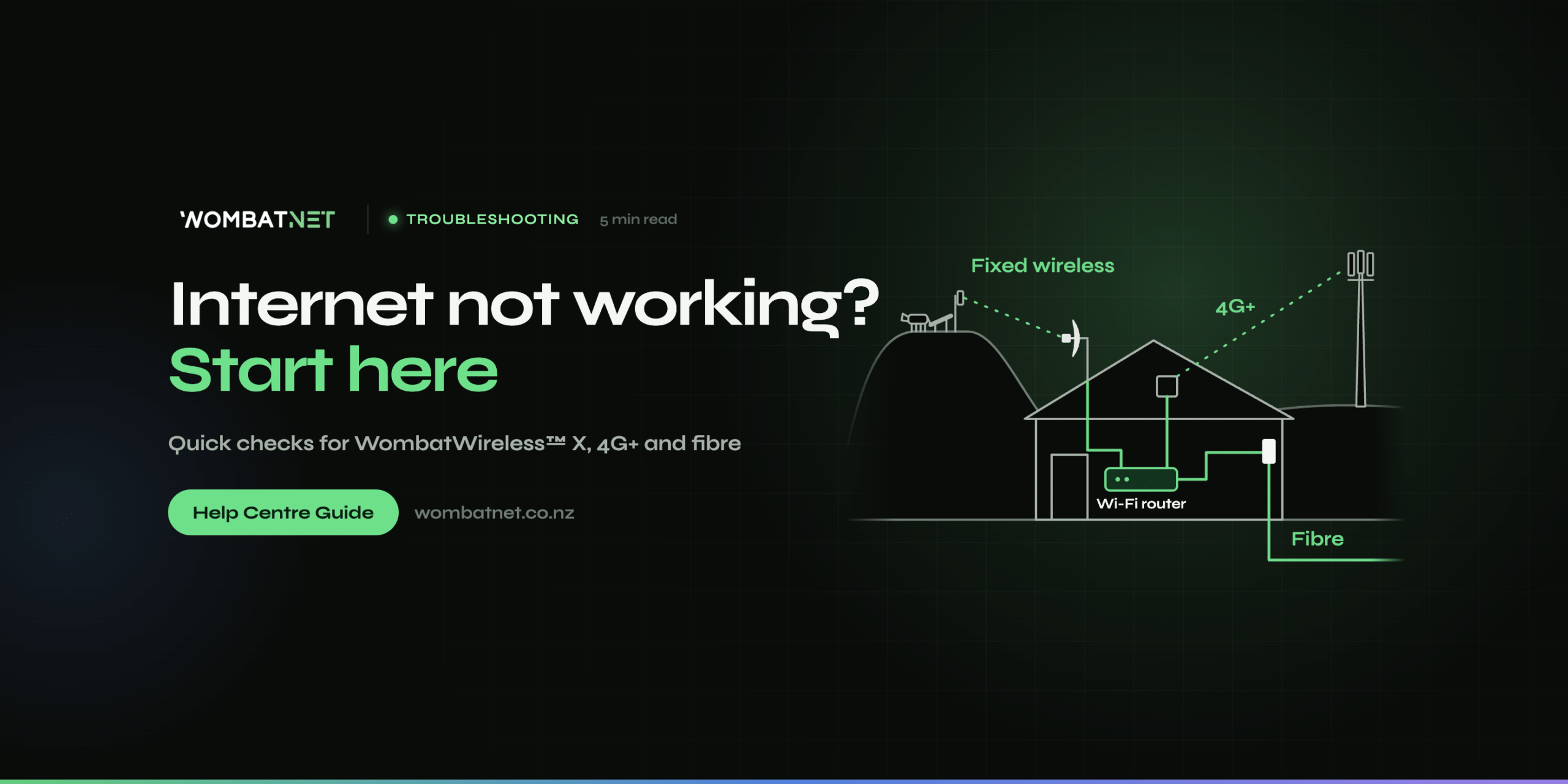
Your neighbour is fine. Don’t be thrown by that. Fixed wireless runs on our own network, 4G+ runs on One NZ’s mobile network, and fibre runs on Chorus or another local fibre company. A problem on one route may not touch the others, so a neighbour on a different service or provider can be working perfectly while you’re not.
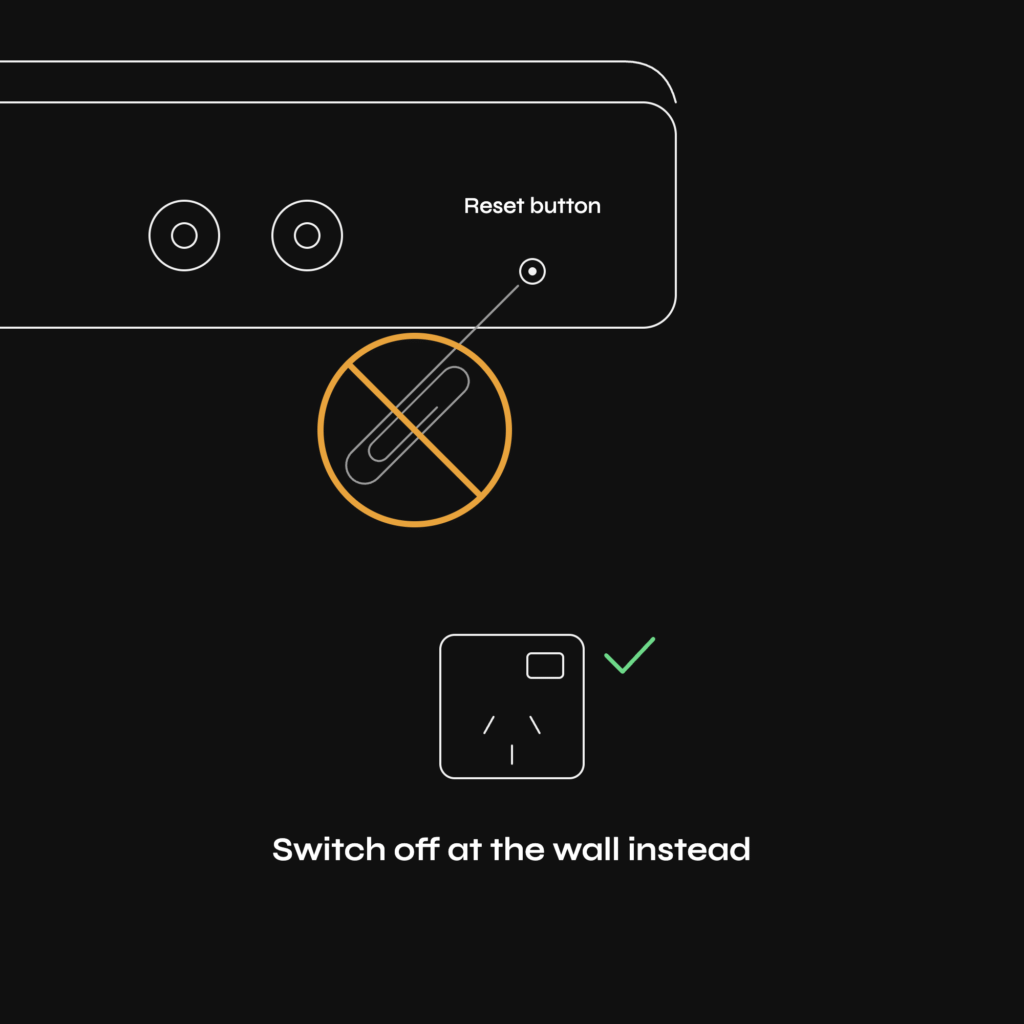
Switch off every box in your internet setup at the wall, wait 30 seconds, then switch them back on. Give it up to 10 minutes to come right. Some equipment takes a while to reconnect, so don’t keep switching it off and on while it does.
Not sure you’ve got everything? Switch it off at the wall and watch the lights. If a box still has lights on, it’s on a different plug.
Do it once. If it comes back and keeps dropping out, or doesn’t come back at all, leave everything switched on and contact us. Repeated restarts clear the logs we use to find the cause.
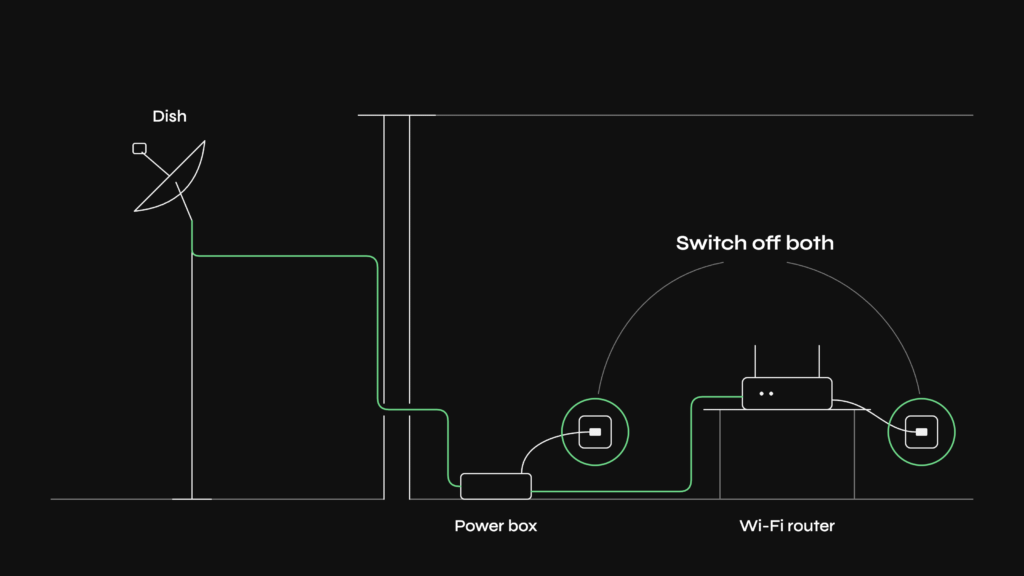
Your dish on the roof or pole is usually powered from inside the house. Follow the black cable that comes in from the dish. If it goes into a small power box (often called a power supply or PoE injector) before it reaches your Wi-Fi router, switch that box off too, not just the router. In some homes, the power box and the router are on different plugs, or even in different rooms.
If the dish cable goes straight into your Wi-Fi router with no power box in between, the router powers the dish, so restarting the router restarts both.
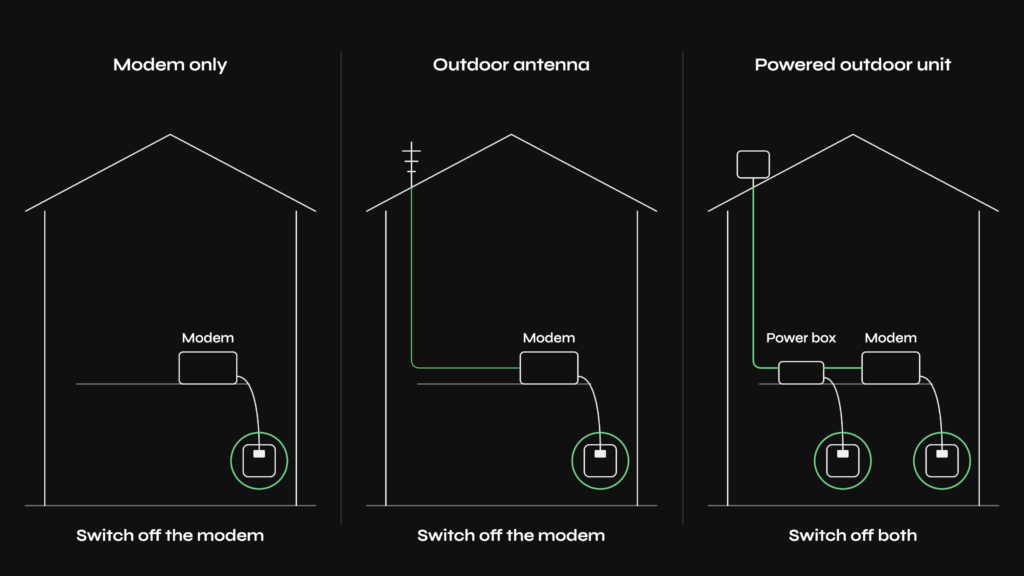
Some 4G+ setups are just an indoor modem, or a modem with an outdoor antenna that doesn’t need its own power. For those, switching off the modem restarts everything.
If you have a powered unit outside on the roof or a pole, a cable runs from it to a small power box inside (a PoE injector). Switch that power box off as well as the modem. Not sure which you have? Follow the cable from your modem. If it goes to a small power box plugged into the wall, switch that off too.
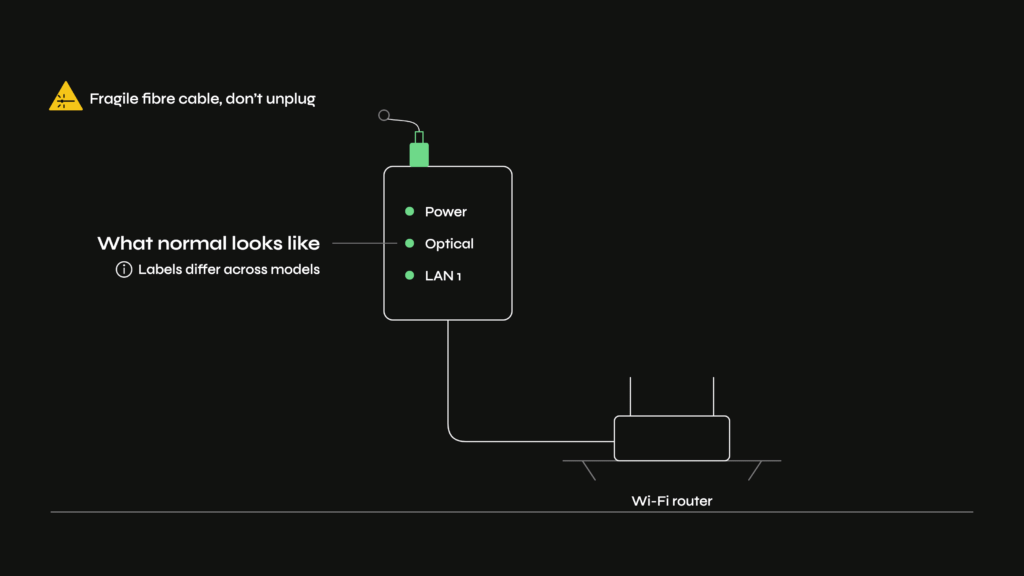
Restart your Wi-Fi router (and any mesh units). Leave the fibre box on the wall switched on unless we ask you to restart it. Chorus says restarting its fibre box is unlikely to fix a fault, and its lights are more useful to us left as they are. See: What the lights can tell you.
Leave everything plugged in and switched on, and get in touch. Please don’t try other settings in the meantime. What happens next depends on your setup and we’ll let you know. Sometimes we can sort it with you over the phone, but often it needs a callout to set things up again, and there is a charge for that. Our callout charges are on our terms page.
We use quite a few different makes and models, so we won’t try to list every light. A few simple things tell you most of what you need to know, and a photo tells us the rest.
Any lights at all means it has power. No lights means no power is reaching it, so check the plug, the wall switch, and whether the rest of the house has power.
Lights can be hard to see. From the ground it’s often hard to tell one light from another, and on some outdoor units the lights are on top, so you can’t see them at all. Please don’t climb up to look.
Notice what’s different. The most useful thing is whether anything looks different from normal. Taking a photo of your setup when everything is working gives you something to compare against next time.
If the power box inside has a light on, it has power. Some power boxes and routers also have a network (link) light for the cable that runs out to the dish or outdoor unit, and it normally flickers or flashes. If that light normally flashes and now it doesn’t, the cable or the plugs at either end may be the issue. Try unplugging the cable at the indoor end and plugging it back in firmly. If that doesn’t bring it back, check the cable for damage along the outside (see: Damaged cables) and contact us.
Depending on the model, a working router will usually show blue, white, or green. Those are all normal colours. The catch is that the light doesn’t always change when something is wrong further along, so a normal-looking light doesn’t prove the internet is working. If everything looks normal but nothing can get online, restart once, check the status page, and contact us.
Chorus (or your local fibre company) owns the fibre box. It’s usually a white box fixed to an inside wall, with a thin fibre cable going into it and a cable from it to your Wi-Fi router. If you move house, it stays behind for the next people.
Chorus has several models, and the labels differ. The light that shows the fibre connection might say PON, GPON or Optical depending on the model, and the port your router plugs into might say LAN1 or GE1. Chorus has a page with drawings of each model, so you can pick yours and see what its lights mean.
What normal looks like: the Power light is on, the fibre light (PON, GPON or Optical) is on, and the light for the port your router uses is on or flashing.
Common patterns:
Please don’t unplug the thin fibre cable, open the box, take it off its bracket, or use any power cable other than the one that came with it. If the power cable is missing or damaged, Chorus will send a replacement. Use the “Order a replacement cord” link on the same Chorus page.
Not a Chorus box? Some of our fibre customers connect through Tuatahi First Fibre or Enable instead. Their boxes look different, and the lights are laid out differently, but the same patterns apply: the power light is on, the fibre light is on, and the cable light to your router is on. If you’re not sure, send us a photo.
If your devices show they’re connected to Wi-Fi but have no internet, your Wi-Fi router is working, but it isn’t getting a connection from further along. This is what you’ll usually see during a network outage, so check the status page and Facebook first. It can also happen when the dish or outdoor unit has stopped working properly.
If it’s only devices in one part of the house, a shed, or a sleepout, the usual cause is a mesh unit that’s been unplugged or an issue with the cable between buildings. If it’s everything and there’s no outage posted, restart once as above, then get in touch.
Power surges and brown-outs are the most common reason gear doesn’t come back on its own. It’s common for one box to come back on and another not, especially if it’s on a different plug, a multibox, or a battery backup (UPS). Check that every box has lights, then restart once as above.
If you have a UPS and it’s beeping or has been through a few power cuts, it may be the problem. Plugging the gear straight into the wall is a quick way to rule it out. If you have a home phone with us, it runs over your internet connection and won’t work during a power cut, so keep a charged mobile handy.
If your connection drops in strong wind or very heavy rain and comes back when it settles, the weather may be the cause. Wind can shift a dish slightly, trees can move into its path, and very heavy rain can affect one part of our WombatWireless™ X network.
A surprising number of faults are cable-related. Indoors, plugs get knocked loose by cleaning, tradies or someone tidying up. Outdoors, dogs and rodents chew cables, stock pull them, or diggers, fencers, and water blasters catch them.
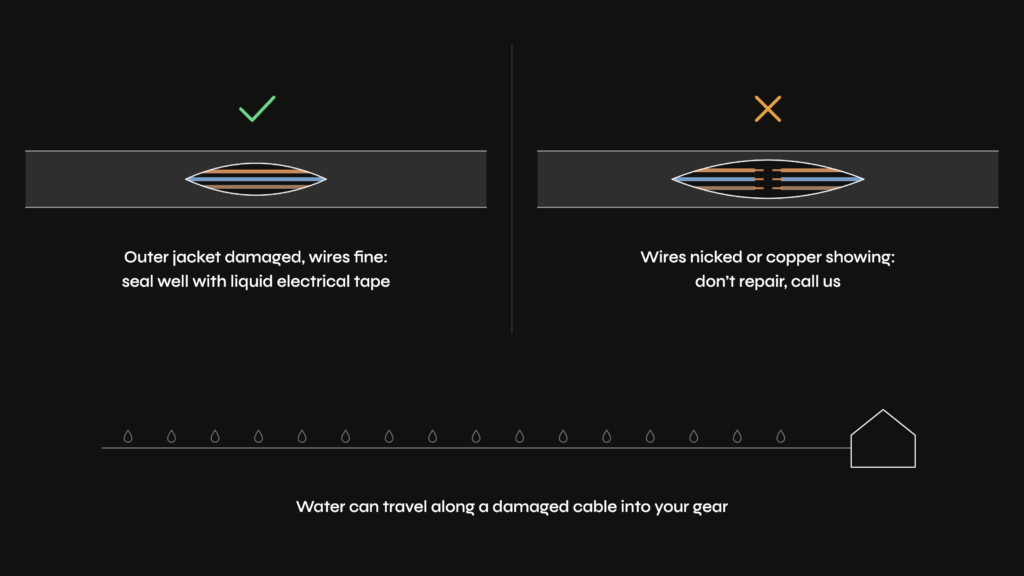
If only the outer jacket is damaged and the wires inside are untouched, you can seal it well with liquid electrical tape, or get in touch and we’ll sort it.
If the wires inside are nicked, cut, or you can see copper, please don’t try to repair it yourself. Home repairs on damaged wires can cause problems with speed and reliability, sometimes weeks or months later. Get in touch, and we’ll fix it properly.
We’ll quote for cable repairs where we can, but there usually isn’t a fixed price, because it depends on what’s needed (sealant, enclosures, joiners, extra cable) and the travel and time involved.
We post known outages and planned maintenance on our status page at status.wombatnet.co.nz. Quick advisories and urgent problems our monitoring can’t see (for example, a fault further down the line from where we measure) often go on our Facebook page first because it’s faster for us to post there.
We try to do maintenance on our own network in the early hours of the morning, and we let affected customers know at least 24 hours beforehand where we can. Chorus and the other fibre companies schedule fibre maintenance, and we upload the outage windows to our status page as soon as we receive them. If your connection doesn’t come back on its own after a maintenance window, restart once and get in touch.
If you’ve been through the checks and it’s still not working, tell us. If your internet is down, use your phone’s mobile data or call.
When we’re around. Our usual hours are on our Google listing. They’re not set in stone. If you call outside those hours and wait on hold, you’ll still be put through if someone’s available, but we ask you to avoid late-night and early-morning calls where you can.
How quickly we respond. If you have an outage and let us know before midday, we’ll do our best to fix it the same day. We sort less urgent questions by priority and aim to reply within one to three working days. If it’s urgent, or you haven’t heard back when you’d expect to, please call.
The quicker we can see what’s going on, the quicker we can fix it. Tell us:
We’ll sort out connection problems to your property, and we’ll keep you posted while we work on it. What’s covered beyond that depends on your setup and what’s caused the problem. We’ll always help you work out what’s going on, and we’ll tell you before any cost is involved. Our callout charges are listed on our terms page.